Adding alt text to the video hero
Step 1
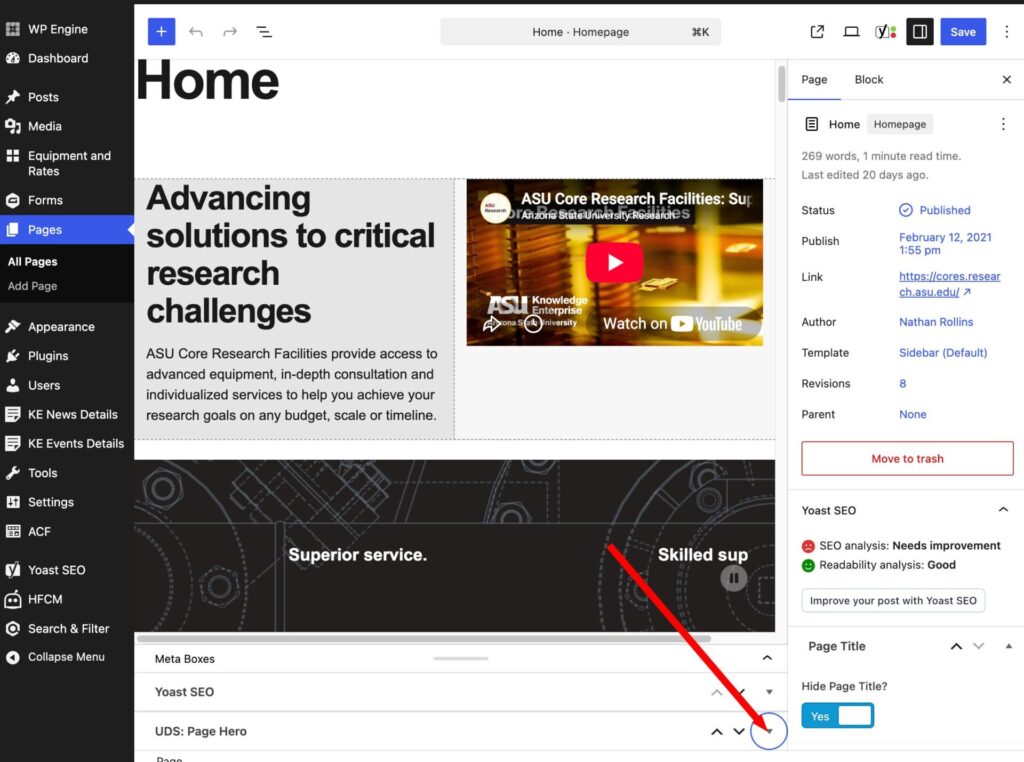
Edit the page. Then click on the dropdown arrow under UDS Pager Hero at the bottom of the page. This option may not be there if you are not an admin. If that is the case please submit a ticket through Service Now.
Step 2
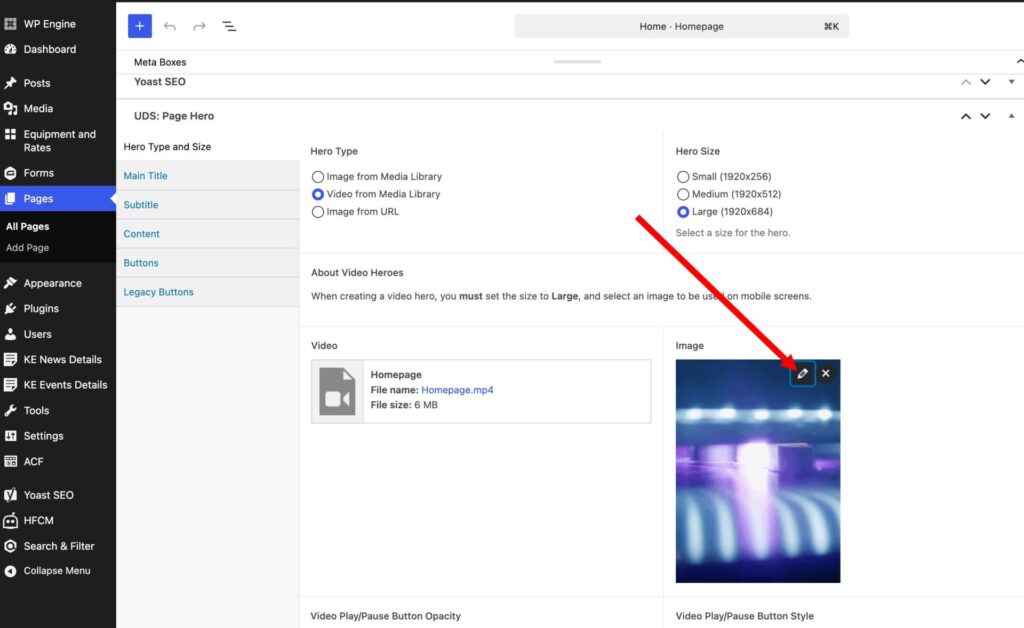
Click on the pencil to edit the image and add the alt text.
Step 3
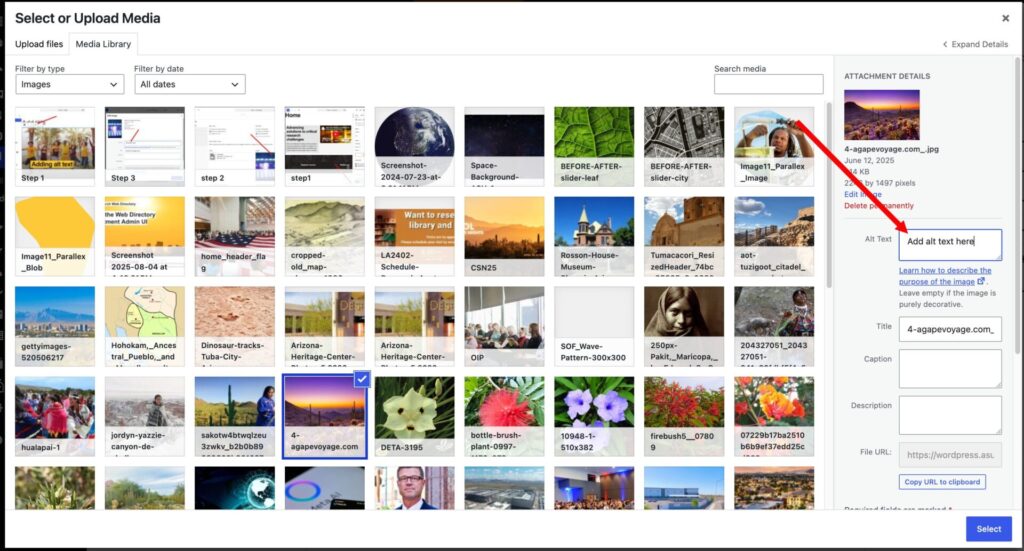
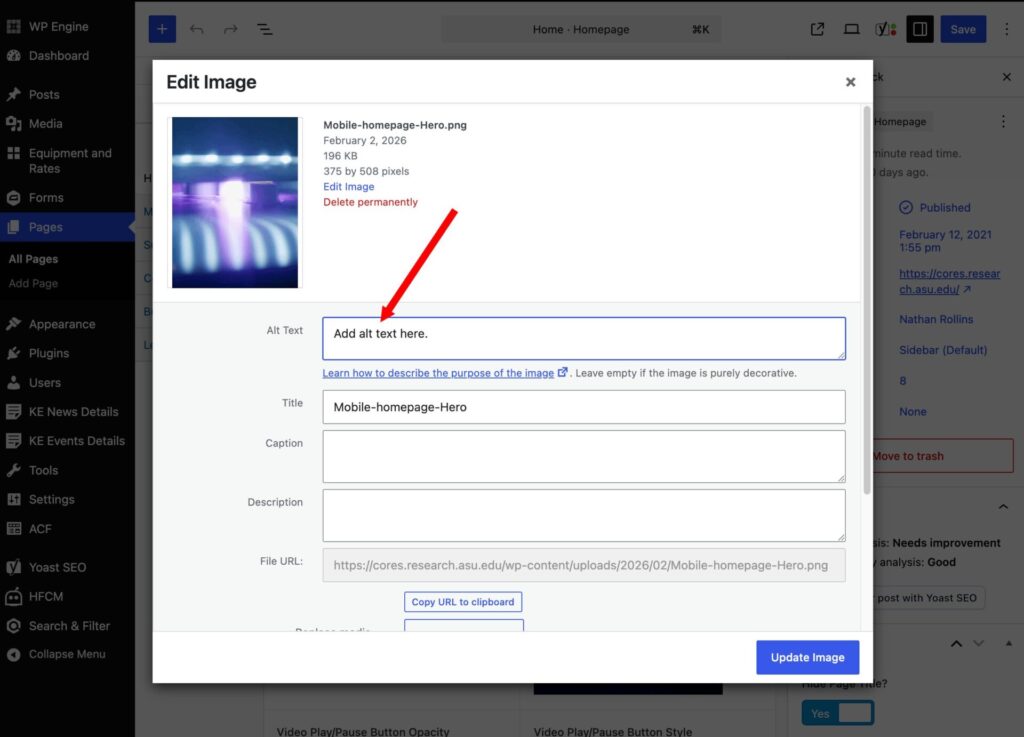
Add the alt text in into the field for alt text.
Adding alt text to the Unity hero
Step 1
Click on the image and then click on the pencil to edit the image
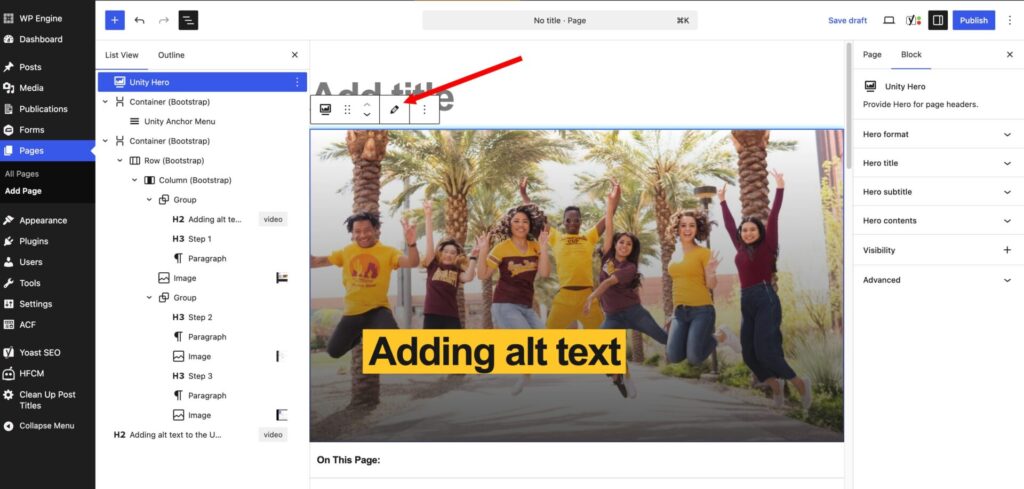
Step 2
Once you click on the image you are using, the currently used image should be selected. On the right hand side there should be a field in the sidebar for adding the alt text. Once you have added the alt text, you will need to press the select button so it will replace the previous image on the page without the alt text.